
The Nomivio manual.
From your first folder to advanced templates: commands explained step by step using the application’s English labels. Screenshots show the English interface.
No matching chapters.
01. Getting started
Open Nomivio on an Apple Silicon Mac running macOS 14 or later. Click « Open folder » and choose your music folder. macOS then grants access to that folder. Use the « Source » tree to browse subfolders; « Source settings » let you include subfolders in the scan. Supported formats are MP3, FLAC and M4A. Unsupported files are reported: read the details before attempting any conversion.
02. Library and selection
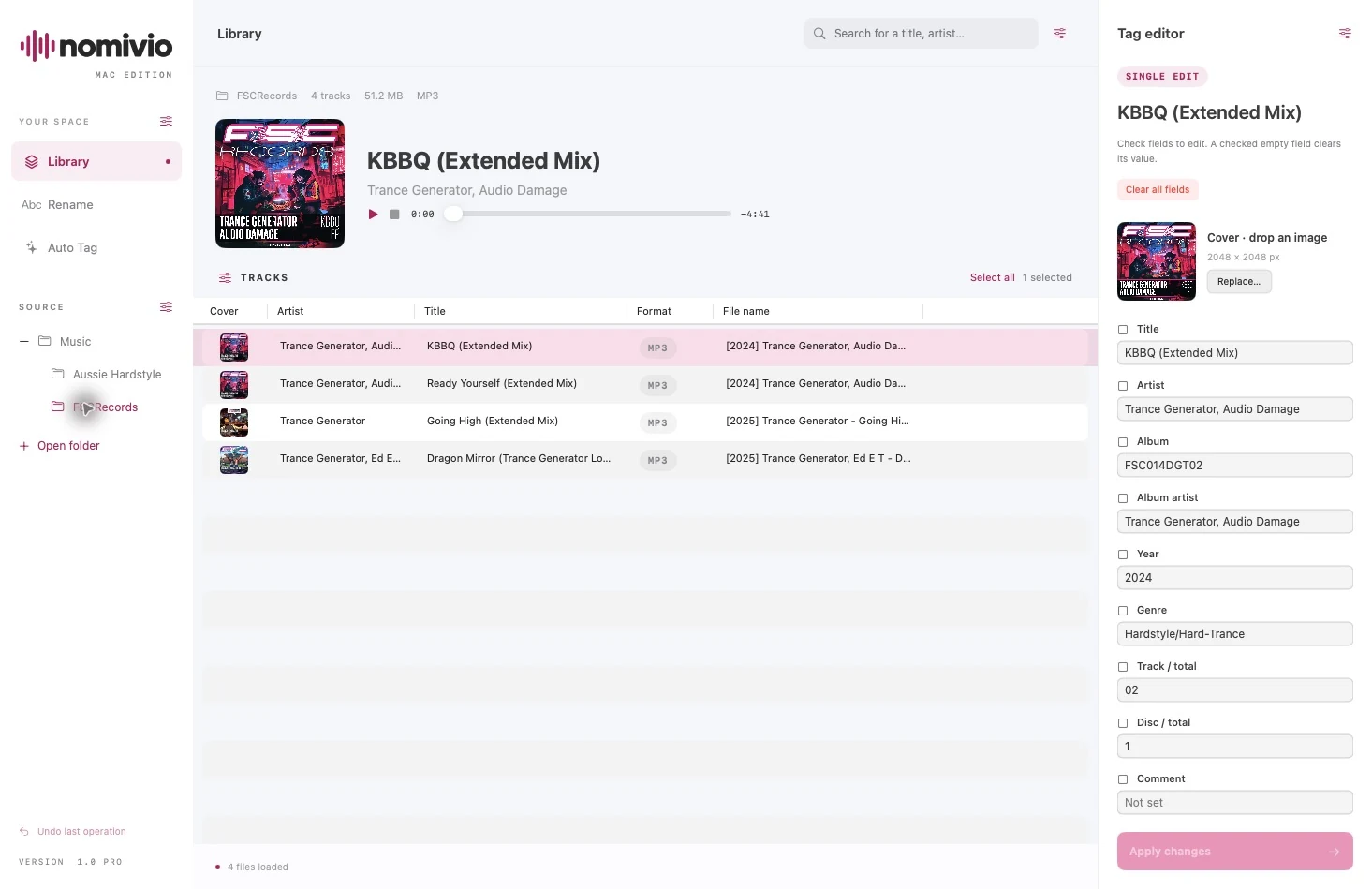
The library lists files in the open folder. Search for a title or artist at the top. Select a row to load its tags; use macOS multiple selection for several tracks, or « Select all » for the displayed results. Click a column heading to sort. « Table columns » lets you choose visible information and restore the defaults. « Artist » and « Title » cells are editable; review staged changes before applying them.
03. Listen before you organise
Select a track in « Library ». « Play » / « Pause » controls playback, « Stop » stops it, and the position slider seeks within the track. The player shows elapsed and remaining time. Enable « Auto play » in « Player settings » to hear newly selected tracks. Nomivio plays local files; it does not provide a streaming catalogue or DJ mixing tools.
04. Edit tags individually or in batches
Select files, then check only the fields you want to change in « Tag editor ». An unchecked field stays unchanged. A checked empty field clears its value, so use it deliberately. In a multiple selection, the same new value is applied to the selected files; mixed values are not a shared empty value. Click « Apply changes » to write the tags. « Clear all fields » stages clearing the relevant fields; it is not a close button.
05. Visible and custom fields
Open « Tag settings », then « Fields ». Search and check the tags to display. The initial nine fields are: « Title », « Artist », « Album », « Album artist », « Year », « Genre », « Track / total », « Disc / total », « Comment ». Add a custom field with a clear name such as MY_TAG. Custom text uses TXXX in MP3, Vorbis comments in FLAC and MP4 freeform fields in M4A. Enter one value per line for multiple values. Binary data is not edited as text.
06. Cover artwork
Click « Add… » or « Replace… » in the editor, or drag a JPEG or PNG from Finder onto the artwork. The image is staged before writing and you can cancel that change. With multiple files selected, the new artwork applies to the whole selection. Confirm with « Apply changes ». In Pro, an online match can also offer artwork; include it only when it suits the track version.
07. BPM and Classic/Camelot keys
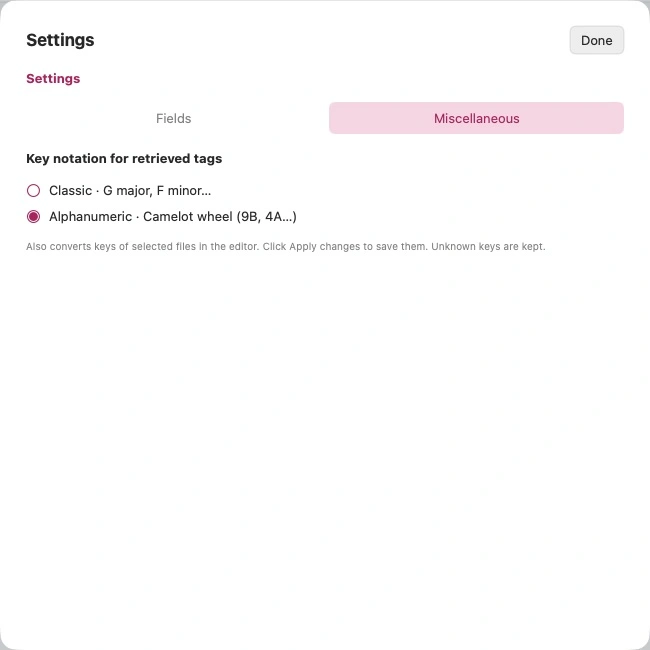
Enable « BPM » and « Key » in « Tag settings ». Edit their values and convert recognised keys with « Classic ⇄ Camelot ». The « Miscellaneous » tab in « Tag settings » selects the notation for retrieved keys. Review and apply changes; unknown keys are preserved. Nomivio manages metadata: it does not analyse the audio signal to detect BPM or musical key.
08. Rename and organise folders
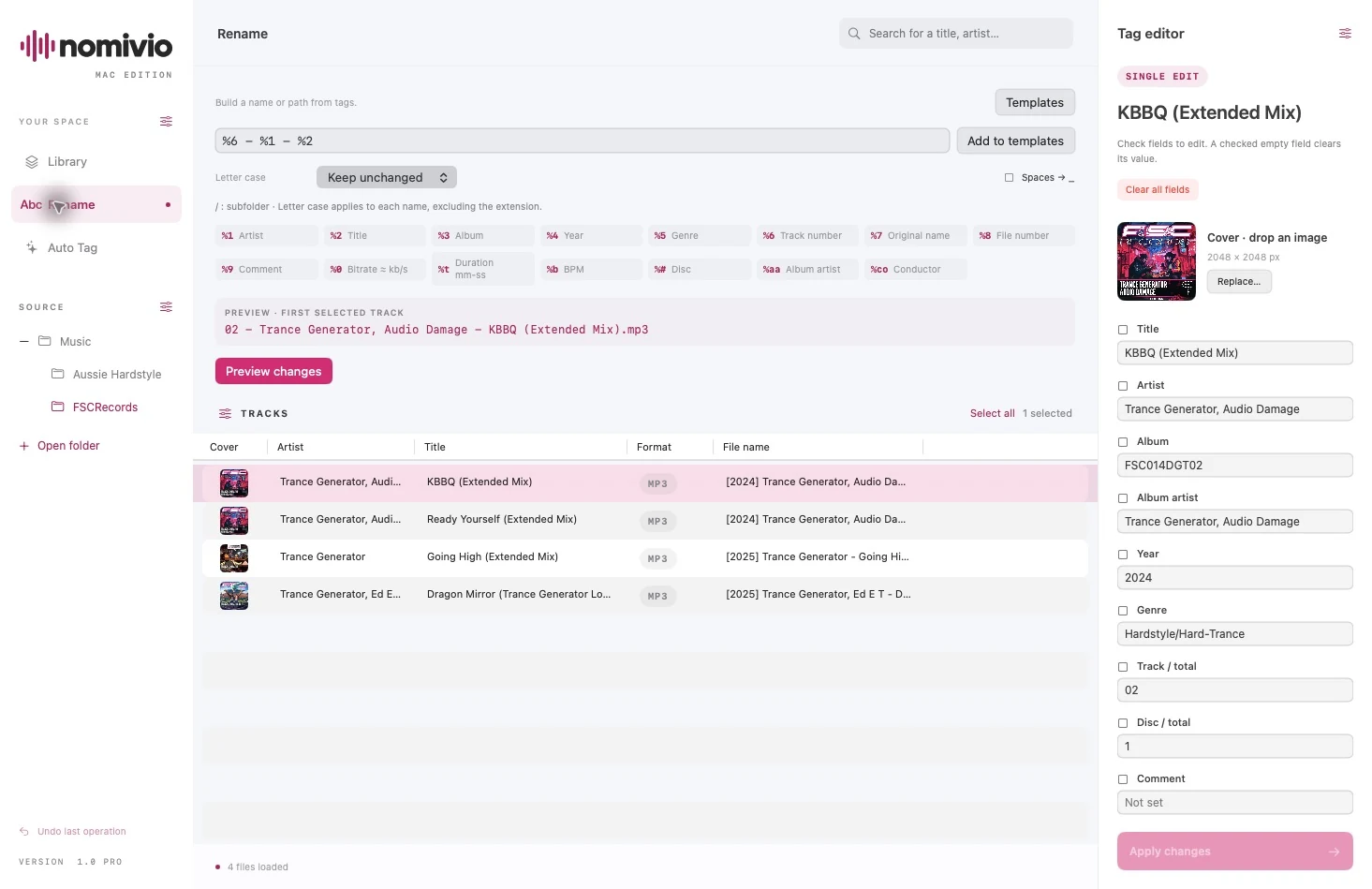
Select tracks and open « Rename ». Build a template using the variable buttons. %1 - %2 produces Artist - Title; %1/%3/%6 - %2 organises files as Artist/Album/Track - Title. A slash creates a subfolder; the extension is preserved. Choose the « Letter case » and optionally « Spaces → _ ». Use the first-track preview to refine the template. Click « Preview changes », check original names and new relative paths, then « Apply to files ». Renaming alone does not change tags. Apply or discard pending tag edits first.
09. Save your templates
Renaming and filename extraction have separate template lists. Use « Add to templates » to save the current pattern, then recall it from « Templates ». « Manage templates… » lets you edit, reorder, add or remove entries and restore missing built-in templates. The « Letter case » setting offers: « Keep unchanged », « lowercase », « UPPERCASE », « Each Word », « First word ». Always preview against the actual tags in your selection.
10. From filenames to tags
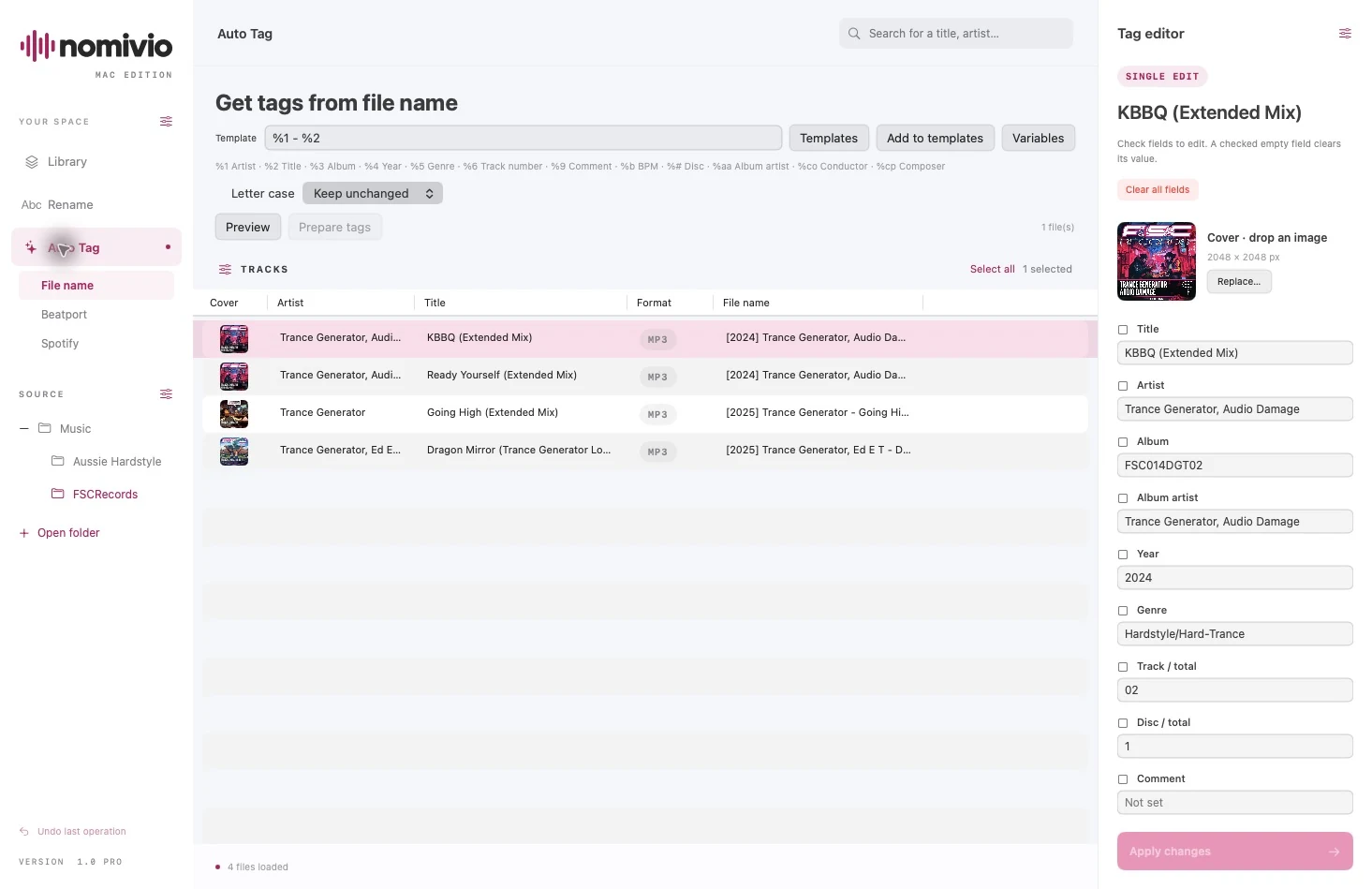
Open « Auto Tag », then « File name ». Describe the filename without its extension, for example %1 - %2 for Artist - Title. Separate variables with text or a dash; each variable can appear only once. Extraction reads the filename, not the folder path. Click « Preview » and correct mismatches. « Prepare tags » stages values in the editor; review them and use « Apply changes ». This local extraction is available in both Light and Pro.
11. Beatport · Pro
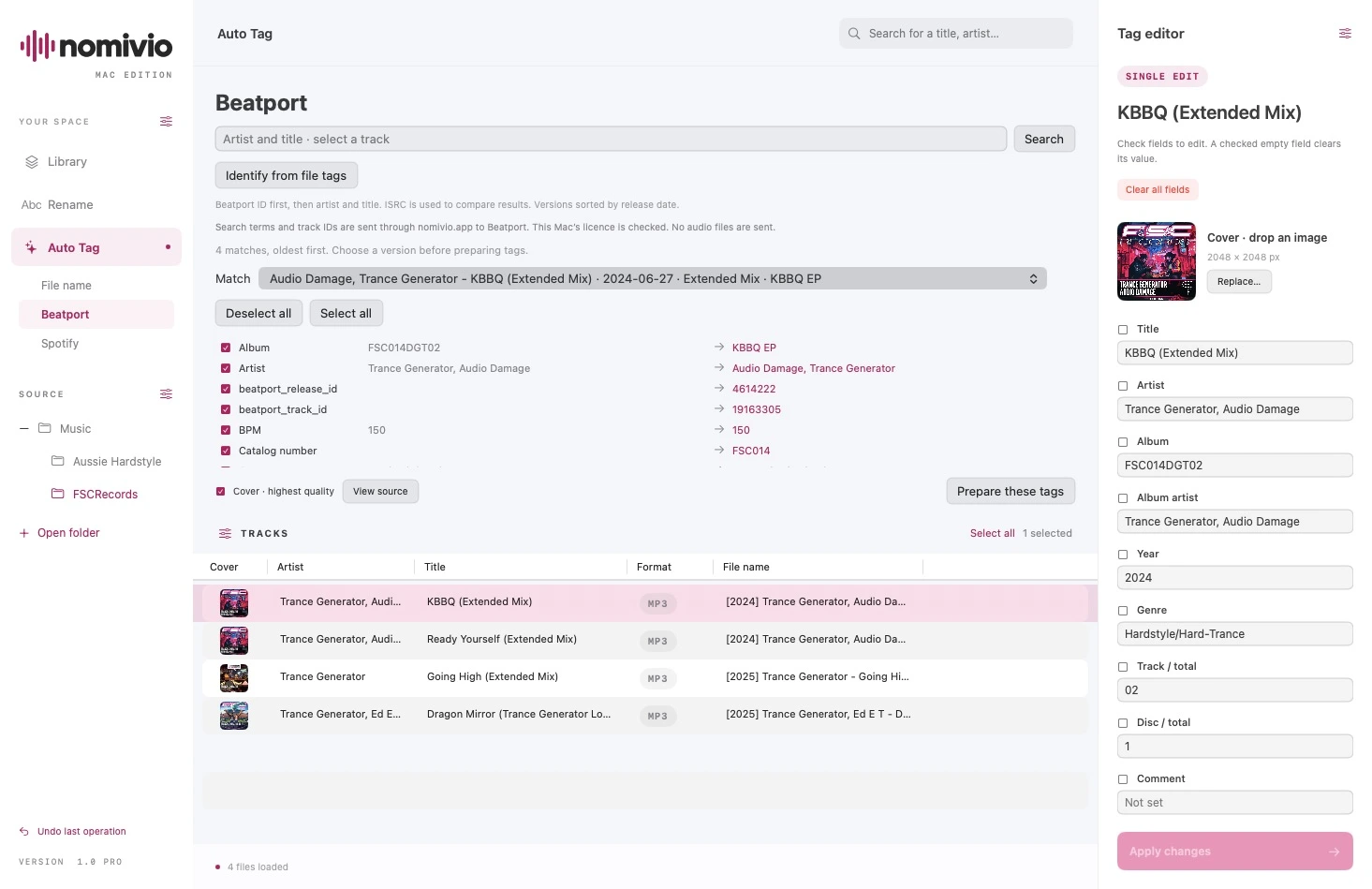
Open « Auto Tag » → « Beatport ». Select a track and search by artist/title, or use « Identify from file tags ». Beatport ID takes priority, followed by artist/title tags; ISRC helps compare results. Choose the correct version yourself: Radio Edit and Extended Mix are not interchangeable. Compare old and new values, select fields and optionally artwork, then « Prepare these tags ». Choose « Fill empty fields only » or « Replace existing values », and finish with « Apply changes » in the editor. No personal Beatport account is needed. Searches pass through nomivio.app and this Mac’s licence is checked; audio files are never uploaded.
12. Spotify · Pro
Open « Auto Tag » → « Spotify » and follow the in-app guide. This connection uses your personal Client ID and a Spotify Premium account; no Client Secret is requested. Enter the configuration and redirect address exactly as shown in the app, then sign in through Spotify’s browser page. Do not publish credentials or screenshots of that setup. Search or identify a track, choose a match and fields to stage, then review before applying. Spotify is a metadata source here, not an audio downloader. Spotify permissions and limits can affect availability.
13. Identify multiple tracks · Pro
Select several tracks before opening « Beatport » or « Spotify ». Click the identification button, for example « Identify 3 selected files » when three files are selected, and follow the per-file results. You can stop the search. Review proposed matches and affected fields before staging and applying tags. No match is not a reason to replace valid metadata. Results depend on the catalogues and the information already present in your files.
14. Undo and protect your library
Nomivio stages operations, checks files and keeps a backup for undo. « Undo last operation » reverses the last supported operation. Metadata changes preserve the audio stream; unsupported structures are rejected. If a file changes between preview and applying, generate a fresh preview. Keep your normal music collection backup too: undoing the last operation is not a replacement for a full backup.
15. Language and appearance
In « Nomivio settings », choose a language: « Français », « English », « Italiano », « Deutsch ». Available colours are « Pink », « Blue », « Green », and appearance modes are « Light », « Dark », « Automatic ». « Automatic » follows macOS. Settings are remembered on this Mac. Screenshots show the English interface and the light pink theme; the instructions use the English interface labels.
16. Editions and Pro activation
Light is intended for the Mac App Store and includes local tools. Pro is distributed separately on nomivio.app and adds Beatport and Spotify. A Pro licence covers two Macs and needs Internet for activation and renewal; offline authorisation can last up to seven days. Follow your order instructions to retrieve the download and licence. Never share your key. For transfers, use licence management; releasing a slot may wait until the previous offline authorisation expires.
17. Troubleshooting
Folder unavailable: select it again with « Open folder ». Missing track: check the format and subfolder setting, then review loading errors. « Apply changes » disabled: select files and check a genuinely modified field. « Rename » blocked: finish pending tag edits and check the template. Wrong online version: refine the query and compare duration, mix, artist and date; do not accept uncertain matches. For Spotify, check the connection, Client ID and in-app guide. For an expired licence, reconnect to the Internet. Contact support@nomivio.app with the app version and an error message with all keys removed.
Template variable reference
%1— « Artist »%2— « Title »%3— « Album »%4— « Year »%5— « Genre »%6— « Track number »%7— « Original name »%8— « File number »%9— « Comment »%0— « Bitrate ≈ kb/s »%t— « Duration mm-ss »%b— « BPM »%#— « Disc »%aa— « Album artist »%co— « Conductor »
Extraction additionally supports %cp for composer; %7, %8, %0 and %t are rename-only.
All available fields
- « Title » (title)
- « Artist » (artist)
- « Album » (album)
- « Album artist » (album_artist)
- « Year » (year)
- « Genre » (genre)
- « Track / total » (tracknumber)
- « Disc / total » (discnumber)
- « Comment » (comment)
- « BPM » (bpm)
- « Key » (key)
- « Style » (style)
- « Mood » (mood)
- « Version / mix » (version)
- « Label » (label)
- « Catalog number » (catalog_number)
- « ISRC » (isrc)
- « Grouping » (grouping)
- « iTunes grouping » (itunes_grouping)
- « Rating (0–5) » (rating)
- « Composer » (composer)
- « Conductor » (conductor)
- « Remixer » (remixer)
- « Lyricist » (lyricist)
- « Producer » (producer)
- « Original artist » (original_artist)
- « Original album » (original_album)
- « Original lyricist » (original_lyricist)
- « Copyright » (copyright)
- « Encoded by » (encoded_by)
- « Encoder settings » (encoder_settings)
- « Language » (language)
- « Lyrics » (lyrics)
- « Date » (date)
- « Release date » (release_date)
- « Original date » (original_date)
- « Recording date » (recording_time)
- « Album subtitle » (subtitle)
- « Work » (work)
- « Movement » (movement)
- « Media » (media)
- « Compilation (0/1) » (compilation)
- « Sort: title » (title_sort)
- « Sort: artist » (artist_sort)
- « Sort: album » (album_sort)
- « Sort: album artist » (album_artist_sort)
- « Sort: composer » (composer_sort)
- « beatport_track_id » (beatport_track_id)
- « beatport_release_id » (beatport_release_id)
- « spotify_track_id » (spotify_track_id)
- « spotify_release_id » (spotify_release_id)
- « Barcode / UPC » (barcode)
- « Source URL » (url)